A new patient searches “dentist near me” on a Tuesday afternoon. Your practice is three blocks away. You have a functioning website. You’ve been in business for eleven years. And you don’t show up.
That scenario isn’t hypothetical. According to BrightLocal’s 2024 Local Consumer Review Survey, 98% of consumers used the internet to find a local business in the past year, and Google Maps is the first screen they land on. If your Google Business Profile doesn’t exist, isn’t claimed, or was set up incorrectly, you are structurally invisible to that search, regardless of how good your clinical work is.
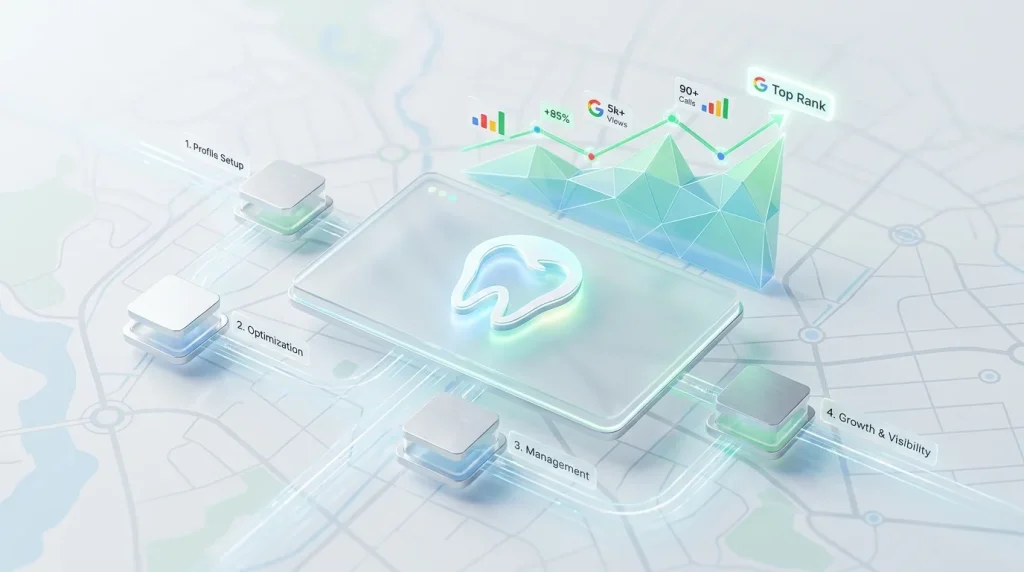
This guide walks you through how to set up a Google Business Profile for a dental practice from scratch, correctly, in a sequence that avoids the four setup errors that routinely suppress dental practices in the local pack.
Table of Contents
What a Google Business Profile actually does for a dental practice
Before touching a single field, it’s worth being precise about what you’re building, because most practitioners treat the GBP setup as a one-time admin task rather than a permanent foundation for their local search visibility.
Your Google Business Profile is the data layer Google reads to decide whether to show your practice when someone nearby searches for dental care. It feeds the local pack (the three result map blocks at the top of a search), Google Maps, and increasingly, AI-generated answers in Search and Gemini. Every field you fill in or leave blank is a ranking signal.
Three things happen when your GBP is set up correctly:
Proximity is amplified. Google can only reward your physical location if it can verify and index it. An incomplete or unverified GBP mutes the proximity advantage you already have.
Trust signals are displayed. Hours, photos, reviews, and your category selection appear directly in search results before a patient ever clicks your website. That first impression is formed entirely within your GBP.
You control the first data layer. Everything that third-party directories, AI engines, and map aggregators pull about your practice originates or should originate from your GBP. If that data is wrong at the source, it propagates incorrectly everywhere else.
How to set up Google Business Profile for your dental practice, in the correct sequence
Step 1: Check for an existing listing before creating anything
This is the step most guides skip, and skipping it causes months of suppression problems.
Google frequently autogenerates business profiles from data scraped across the web. Your practice may already have an unclaimed GBP populated with outdated hours, a wrong phone number, or a misspelled practice name. Creating a second profile without claiming the first creates a duplicate, and Google suppresses duplicate listings.
Go to google.com/maps, search your practice name and city. If a listing appears that you don’t control, claim it through the “Own this business?” link rather than starting fresh. If no listing exists, proceed to create one.
Step 2: Access Google Business Profile Manager
Navigate to business.google.com. Sign in with the Google account you intend to use as the primary owner of the profile using a business-owned Gmail address, not a personal one. If you need to transfer ownership later, a personal account creates unnecessary friction.
Step 3: Enter your practice name exactly as it appears on your signage and website
This is a legal name consistency issue, not just a branding preference. Google cross-references your GBP name against your website, directories, and citations. Inconsistencies are interpreted as trust signals, specifically, the absence of them.
Enter your name without keyword stuffing. “Downtown Family Dental” is correct. “Downtown Family Dental Best Dentist Chicago” violates Google’s guidelines and triggers manual review or suspension.
Step 4: Select your business category
Your primary category is the single highest weight ranking signal in your entire GBP. Select it with precision.
For most general dental practices, the correct primary category is Dentist. Do not select “Dental clinic,” “Health & beauty,” or any category that feels intuitive but isn’t the exact term Google uses for your practice type.
Secondary categories are where you capture specialty visibility, Cosmetic Dentist, Orthodontist, Pediatric Dentist, Oral Surgeon, but only add categories that accurately reflect services you actively provide. Adding irrelevant categories to chase keywords is a guideline violation that can result in profile suspension.
The full category selection framework is covered in detail in the complete guide to GBP categories for dentists.
Step 5: Enter your service area or physical address
If patients come to your office, you are a storefront business. Enter your full physical address. Do not use a PO box or virtual office address. Google’s guidelines prohibit this and it is a common cause of profile suspension for practices that moved or used a temporary address during setup.
If you offer mobile dental services in addition to a fixed location, you can add a service area after verifying your primary address. The address is required for verification regardless of whether you show it publicly.
Step 6: Add your phone number and website
Use your primary direct line, not a call tracking number at this stage, and not a national chain’s 1800 number if you’re a franchise location. The number must match what appears on your website and your top citations (Yelp, Healthgrades, Zocdoc).
Enter your website URL exactly as it appears in your browser, including the protocol (https://). If your site has a dedicated landing page for new patients, that’s a valid option, but only if the NAP (Name, Address, Phone) on that page exactly matches your GBP.
Step 7: Verify your listing
Google requires verification before your profile becomes active in search results. As of 2025, verification methods for dental practices include:
- Video verification is the most common current method; you record a short video showing your business location, signage, and proof of operation
- Postcard by mail sent to your registered address; contains a 5-digit code you enter in Business Manager
- Phone or email available for some accounts; less common for new listings
Video verification has become the default for most new local business accounts. Prepare a 1–2 minute walkthrough of your exterior signage, your reception area, and any equipment that confirms you operate a dental practice. Google’s review team watches these submissions; clarity and completeness matter.
Verification typically takes 3–7 business days. Do not attempt to edit core fields (name, address, category) while verification is pending it resets the process.
Completing your profile after verification of the fields that move rankings
Verification is the starting line, not the finish. A verified by empty GBP performs only marginally better than no profile at all. The fields below are where most dental practices stop short and where the practices that dominate local pack results pull ahead.
Work through these in a single session if possible. Partially completed profiles don’t accumulate ranking credit the way fully built ones do.
Business hours
Enter your actual operating hours, including whether you’re open on Saturdays or offer early morning and evening appointments. These are genuine patient search filters. People routinely search “dentist open Saturday near me” or “dentist open after 5 pm.” If your hours aren’t populated correctly, you’re invisible to those queries.
Add More hours for specific service types if Google makes them available for your category. Some dental profiles can list separate hours for phone availability, online care, or senior hours. Enable every applicable option.
Set a recurring schedule for holidays using the Special hours feature. A profile that shows “Hours not available” on a federal holiday tells Google your data is unreliable and tells patients you might be closed when you’re actually open.
Services
Google provides a prepopulated services menu for dental practices. Accept every service you genuinely offer from that list. Then use the custom service fields to add procedures Google doesn’t list by default: Invisalign, full arch implants, sleep apnea treatment, teeth whitening, same day emergency care.
Each service entry supports a short description. Write one sentence per service that includes the procedure name and a practical patient benefit. “Dental implants, permanent tooth replacement for patients missing one or more teeth,” is indexable and useful. “We offer the best implants in the area” is neither.
Services you list here feed Google’s understanding of what queries your profile should surface for. This is not optional filler; it’s structured keyword data delivered directly to Google’s categorization engine.
Business description
You have 750 characters. Use them to explain what your practice does, who it serves, and what makes your care worth choosing without keyword stuffing and without reading like a brochure.
Lead with your primary service area and practice type in the first sentence. Mention two or three specific services or patient populations you specialize in. Close with something concrete, such as years in operation, languages spoken, insurance accepted, or accessibility features.
Do not include URLs, phone numbers, or promotional language (“best dentist,” “award-winning,” “#1 rated”). Google filters or manually removes descriptions that violate these guidelines. The full framework for writing a description that both ranks and converts is covered in the dental GBP business description guide.
Photos
Upload a minimum of ten photos at launch. Google’s own data shows that businesses with photos receive significantly more direction requests and website clicks than those without (Source: Google Business Profile Help, 2024).
Prioritize these categories in order:
- Exterior of your building from the street, your signage, and the parking entrance. This is what patients look for when navigating to you for the first time.
- The reception and waiting area is the first interior space a patient sees. Clean, well-lit, current photos only.
- Treatment room, one or two shots showing modern equipment. Patients evaluate anxiety and cleanliness from these images before booking.
- Team photos, staff group shots, and individual provider headshots. Practices with identifiable team photos generate more trust conversions than those without.
All photos should be shot in natural or professional lighting, minimum 720px wide, JPG or PNG. Never upload stock images. Google’s systems flag them, and patients recognize them immediately.
Common setup mistakes that suppress dental GBPs
These aren’t edge cases. Every one of them appears regularly across dental practice profiles in competitive US markets.
Using a keyword-stuffed business name
“Smile Bright Dental Cosmetic Dentist Chicago IL” reads like a ranking attempt because it is. Google’s guidelines require your GBP name to match your real-world business name exactly. Practices that stuff keywords into the name field face two risks: a competitor flags the profile for guideline violation, triggering manual review, or Google algorithmically filters the profile in competitive searches. Neither outcome is recoverable quickly.
Selecting the wrong primary category
Choosing “Dental clinic” instead of “Dentist” is a consistent error in new setups. The two categories have different ranking pools. “Dentist” aligns with the highest volume dental search queries in the US. Mismatched categories mean your profile competes in the wrong bucket and loses the visibility it would otherwise earn by default. The impact of category selection on local pack positioning is one of the most documented findings in the GBP attributes and ranking factors research.
Verifying with a personal Google account
If the person who set up the GBP leaves your practice, you can lose admin access entirely. Use a business-owned account ([email protected] or your domain email connected to Google Workspace) as the primary owner. Add a secondary owner immediately as a redundancy.
Leaving the profile static after setup
Google interprets profile activity as a freshness and engagement signal. A GBP that was set up in 2022 and has never been updated since, with no new photos, no post activity, and no Q&A responses, gradually loses competitive ground to profiles that show regular interaction. Setup is the foundation. What you build on it afterward determines where you rank. That ongoing optimization framework is what the complete Google Business Profile optimization guide for dental practices covers in full.
Inconsistent NAP across citations
Your Name, Address, and Phone number on your GBP must be identical character for character to what appears on your website, Yelp, Healthgrades, Zocdoc, and every other directory listing you control. “Suite 200” versus “Ste. 200” is enough inconsistency to introduce citation noise. Audit your top ten citations immediately after completing your GBP setup and resolve any discrepancies.
Key takeaways
- Claim before you create. Search Google Maps for your practice before building a new profile. An autogenerated duplicate suppresses both listings and takes months to resolve.
- Your primary category is your most important ranking decision. For general dental practices in the US, “Dentist” is the correct selection. Wrong category = wrong ranking pool.
- Verification is not complete. A verified profile with empty services, no photos, and a missing description performs close to zero in competitive local markets.
- NAP consistency is not optional. Every character of your Name, Address, and Phone number must match across your GBP, website, and top citations. Partial matches introduce noise that suppresses local pack visibility.
- A setup without a maintenance plan loses ground over time. Google rewards profile activity. A static GBP built in 2023 and never touched since, is actively losing rank to competitors who post, update, and respond regularly.
Your next action this week
Block ninety minutes this week, not next month, this week, and complete your set up Google Business Profile dental process using the sequence above. Start with the duplicate check, then move through each field in order. When you reach the services section, write one sentence per service. When you reach photos, upload at minimum your exterior, reception, and one treatment room shot.
If your profile is already live but was set up quickly or by someone who has since left, treat this as a rebuild. Pull up your existing profile in Business Manager, open each field, and verify it against your current website. Pay particular attention to your primary category, your business name format, and whether your phone number matches your site exactly.
The practices that show up consistently in the local threepack aren’t there because they have larger budgets or better websites. They’re there because their GBP data is correct, complete, and maintained. That advantage is entirely replicable, and it starts with setup.